


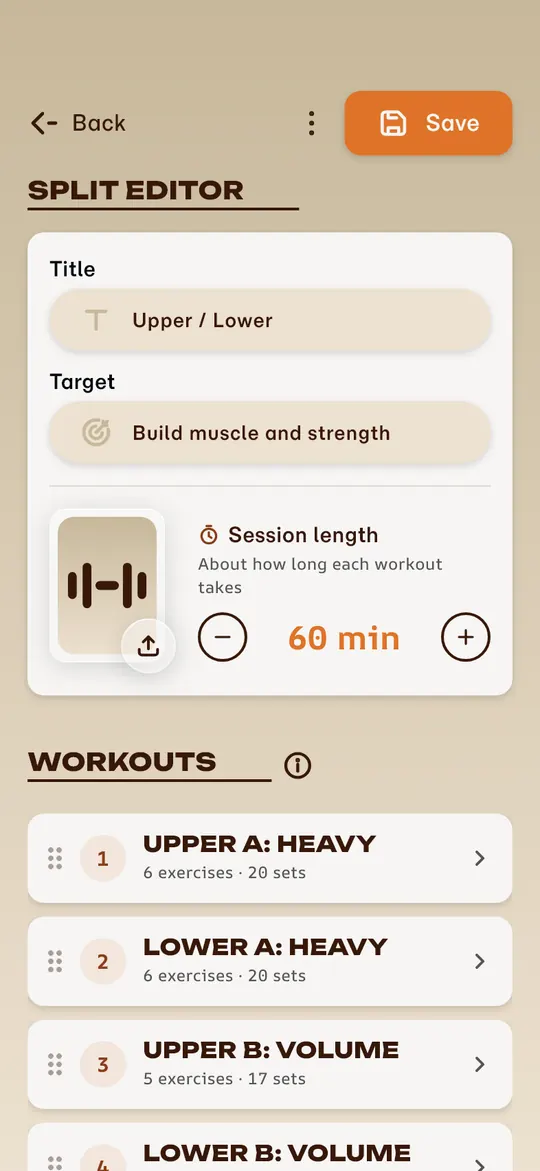
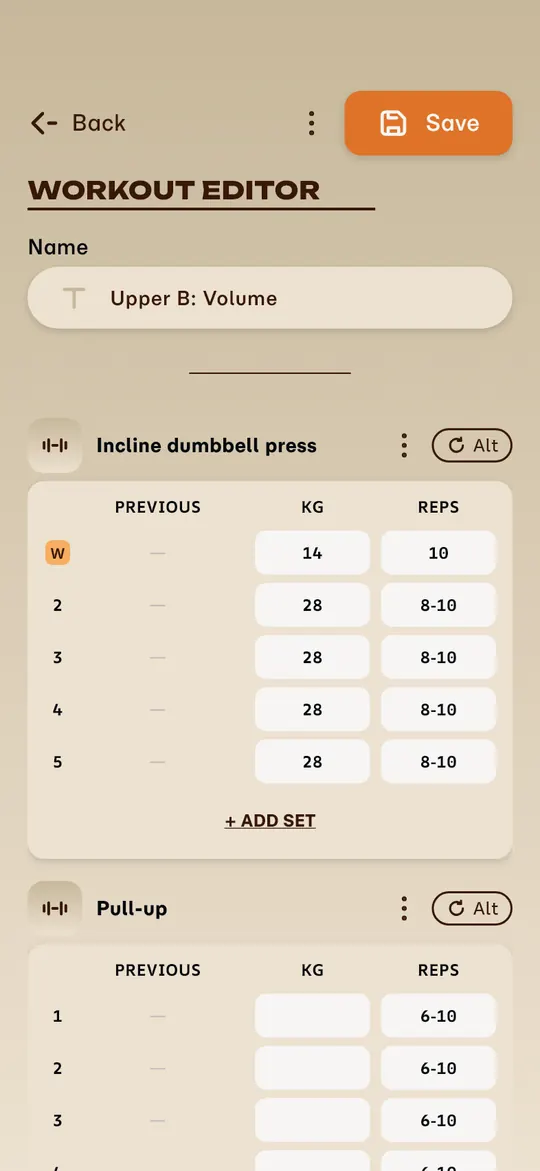
A split is built on two screens, the split editor (its name, goal, length and list of workouts) and the workout editor (one workout's exercises and sets). Each saves on its own.
Create the split
- Tap Splits, then the New Split tile.
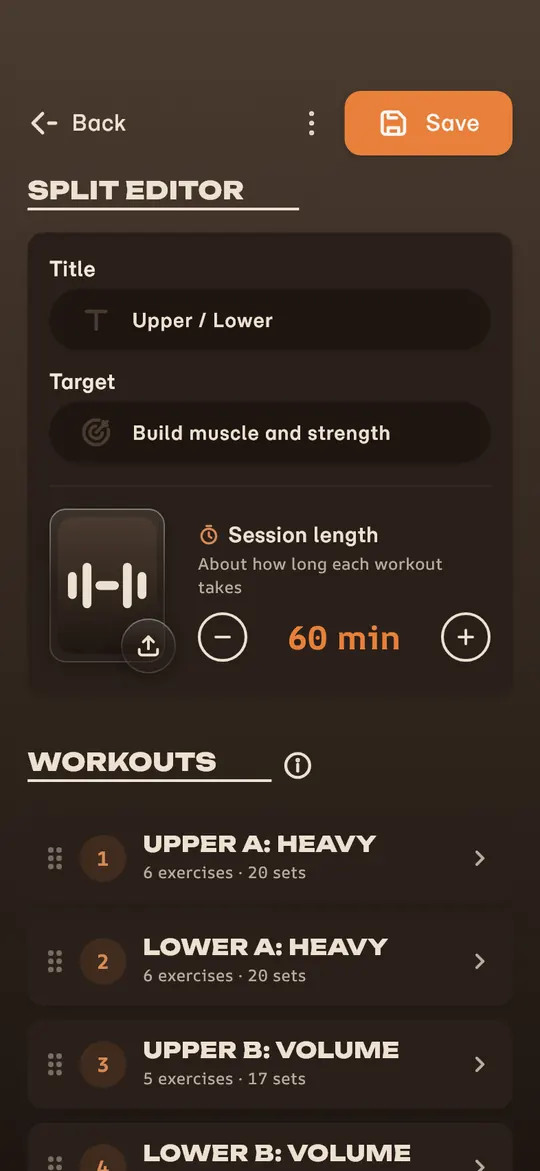
- In the split editor, give it a title (like "Upper / Lower") and a target (what it's for, like "Build muscle").
- Set the session length with − and +. It's about how long each workout takes. Optional.
- Optionally, tap the cover to pick a photo. It stays on your phone.
- Tap Save.
Add its workouts
- Under WORKOUTS, tap ADD WORKOUT. A workout is added straight away ("Workout 1").
- Tap it to open the workout editor.
- Name it (like "Upper A").
- Tap ADD EXERCISE, search or filter, and pick an exercise.
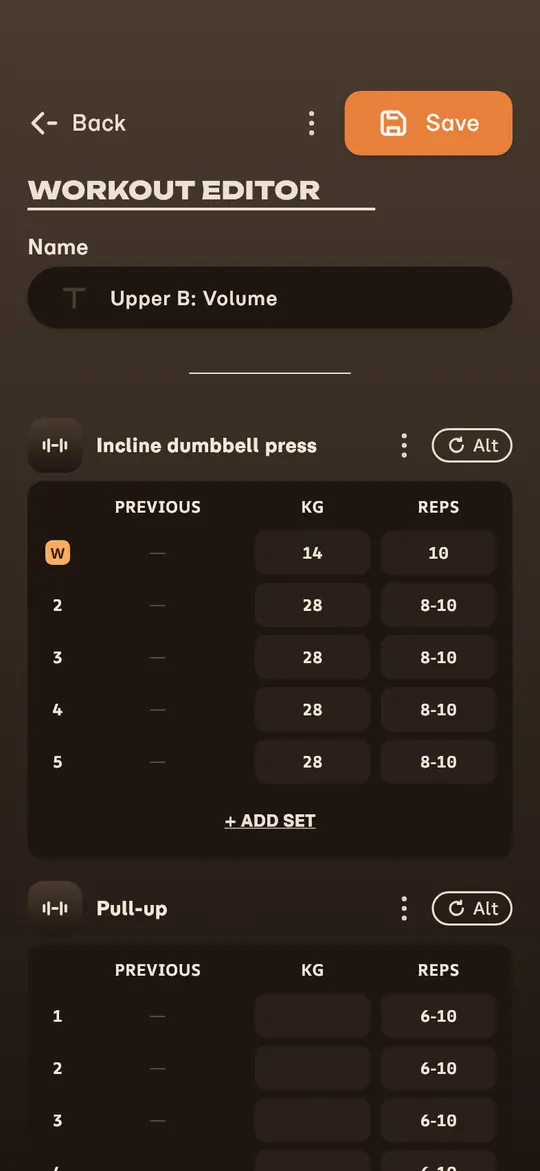
- Set each set's KG and REPS. Reps can be a number (8) or a range (8-12). Leave KG empty to fill it in at the gym.
- ADD SET adds a set (it copies the last one, up to 8). Swipe a set left to remove it.
- Tap Save.
Repeat for each workout. The order of the workouts is the order you'll do them in.
Supersets, drop sets and warm-ups
- Superset (exercises done back to back). The exercise's ⋮ › Superset, then tap the other exercises to join it, and tap the superset again to finish. Its exercises share a colour and a frame.
- Drop set. ⋮ › Dropset.
- Back to normal. ⋮ › Normal.
- Warm-ups. Tap a set's number to make it a warm-up (W), or ⋮ › Add warm-up sets to add them worked out from the weight.
Change it later
- Reorder workouts. In the split editor, drag a workout by its handle (or long-press it).
- Delete a workout. Swipe it left. Workouts you've already done with it stay in your history.
- Reorder exercises. In the workout editor, long-press an exercise's name and drag it.
- Swap an exercise for good. Alt in the workout editor swaps it in the plan.
- Rename or re-target the split. The split editor.
- Delete the split. The split editor's ⋮ › Delete. Your past workouts and stats stay.
Open the split editor from the pencil on the split's cover, or the split page's ⋮ › Edit.
Make it your active split and share it
Tap Activate on its card. To share it with a friend, open its page and tap ⋮ › Share. See Follow a split.
You can also build and edit splits on a computer, on the web dashboard.