

The split editor
How to get there. New Split in Splits, the pencil on a split's cover, or a split page's ⋮ › Edit.
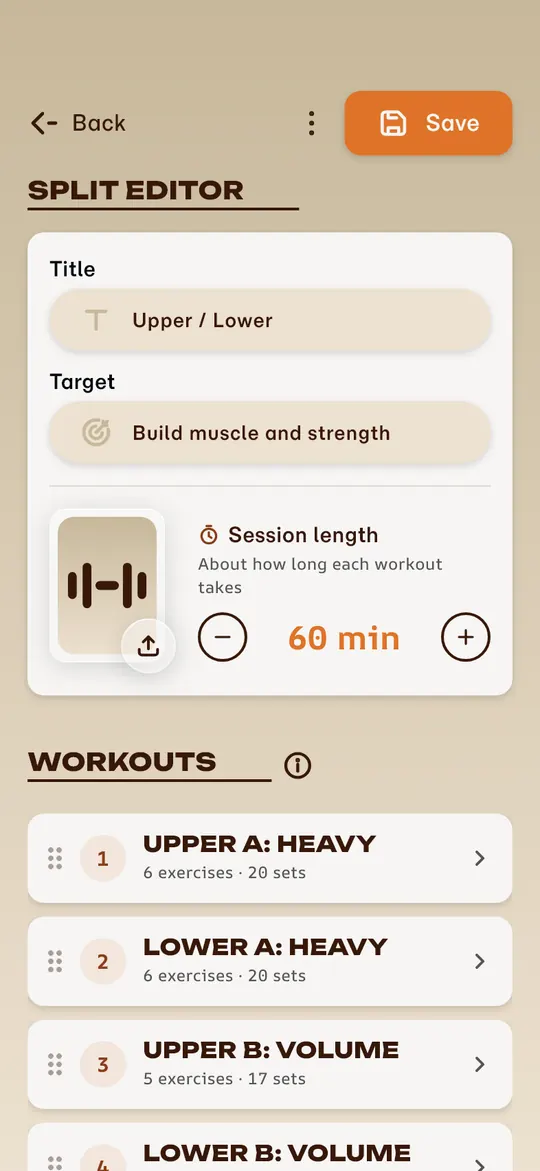
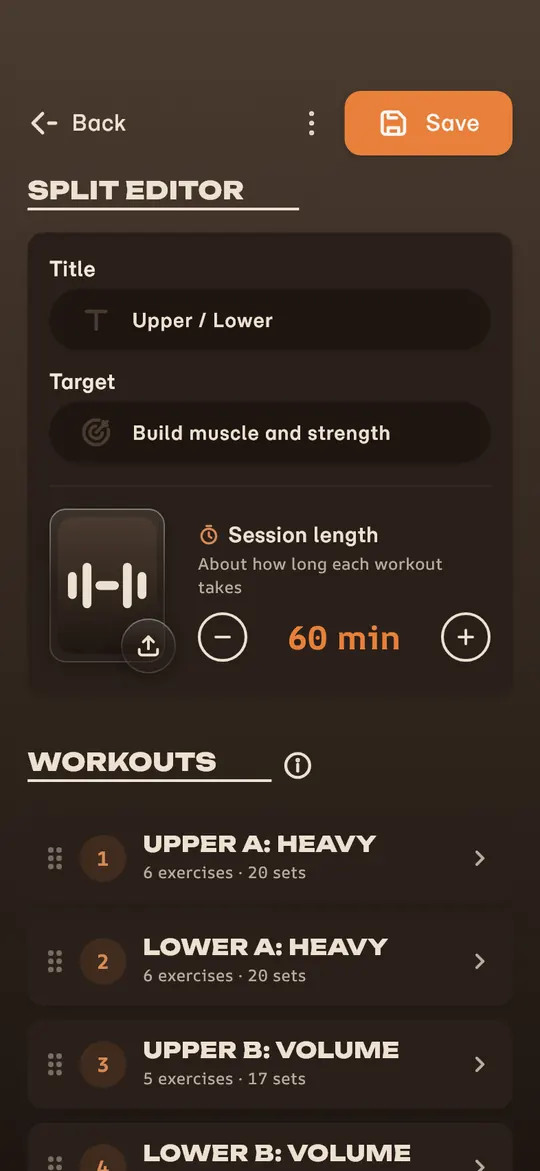
- Back, ⋮ (Delete the split) and Save at the top. Save saves the card below; the workouts save on their own.
- The card. The title and target, the cover photo (tap it or its upload button; it stays on your phone) and the session length (− and +, 5 minutes at a time).
- WORKOUTS. The split's workouts in the order you'll do them, each with its number, name and "5 exercises · 18 sets".
- Tap one to open it in the workout editor.
- Drag one by its handle, or long-press it, to reorder.
- Swipe one left to delete it (after asking).
- ADD WORKOUT adds one straight away.
The workout editor
How to get there. Tap a workout in the split editor, a saved workout's card, or New workout.
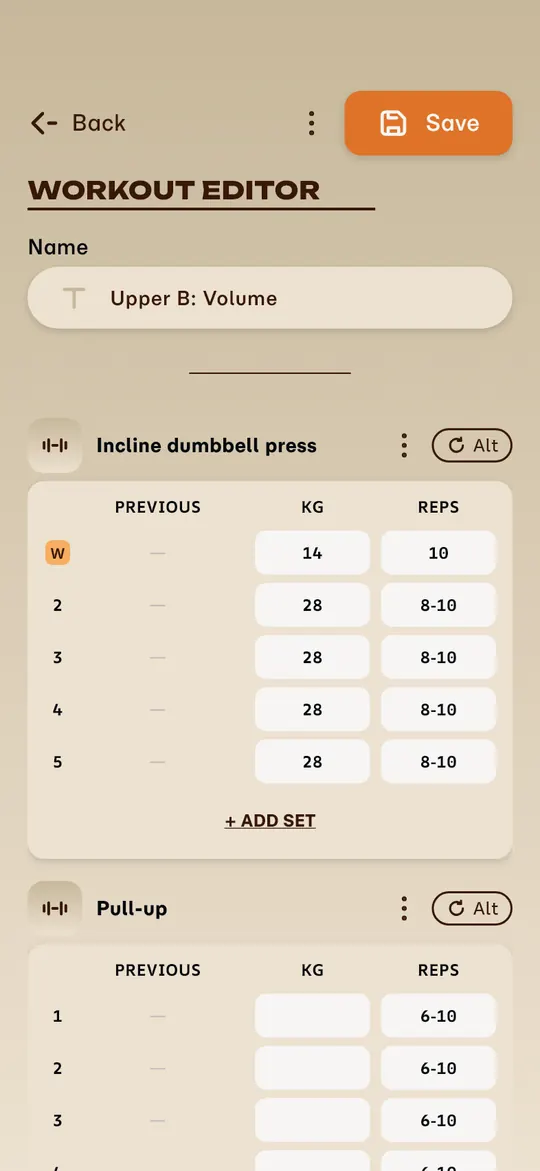
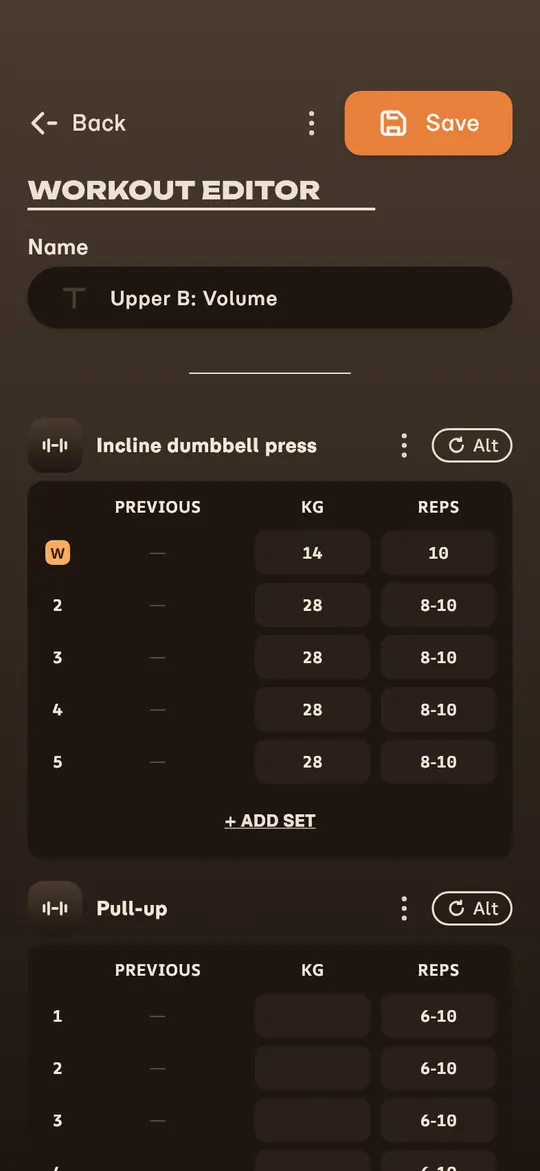
- Back, ⋮ and Save at the top. The ⋮ has, depending on the workout, Start, Ask Gymaroo to change it PRO, Use a template, Clear workout, Save as template and Delete workout.
- Name. What the workout is called.
- An exercise box per exercise.
- Its picture and name (tap for its page; long-press and drag to reorder).
- ⋮. Normal, Superset, Dropset, Add warm-up sets, Remove.
- Alt swaps it for a similar exercise, in the plan.
- The sets, with # (tap to mark a warm-up, W), PREVIOUS (your last time), KG and REPS (a number or a range like 8-12).
- ADD SET (up to 8 sets); swipe a set left to remove it.
- ADD EXERCISE at the bottom opens the exercise picker.
Leaving with unsaved changes asks before discarding them.