The tab bar
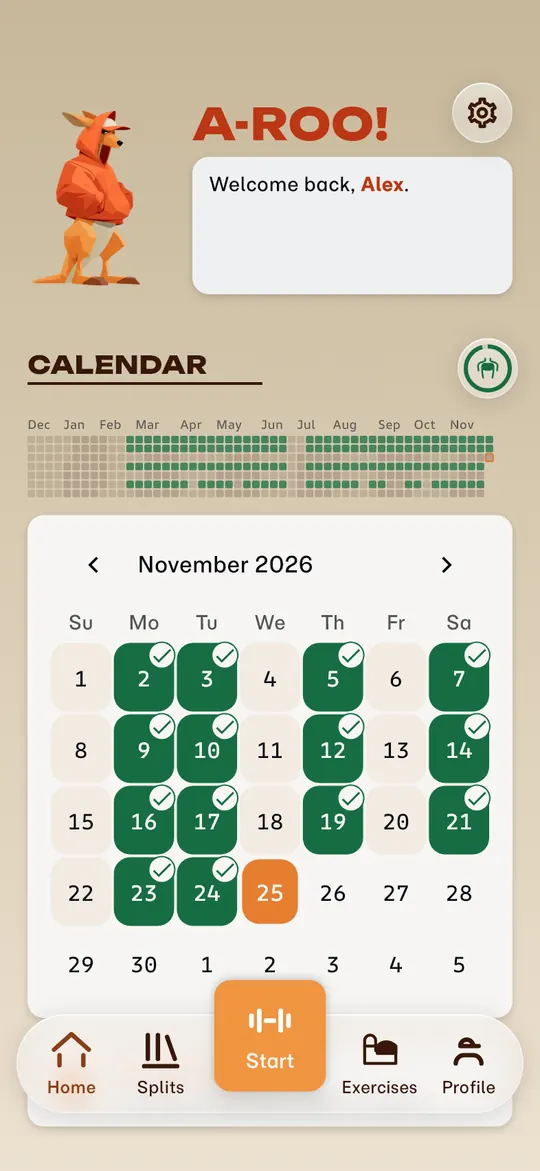
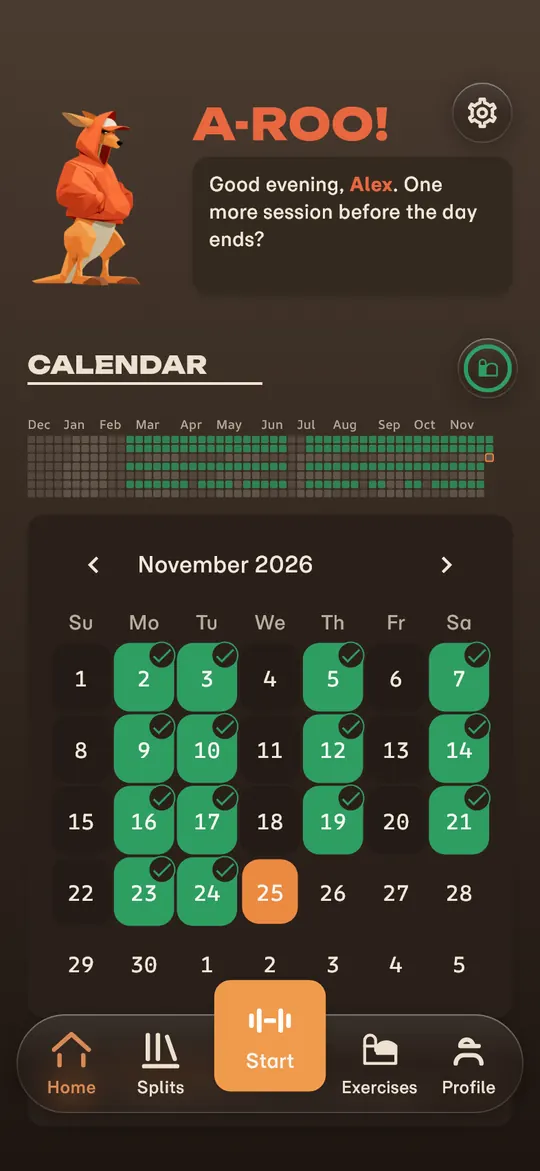
The floating bar at the bottom is always there on the main screens.
| Tab | What's there |
|---|---|
| Home | Gymaroo's greeting, a workout in progress, the calendar, your active split and your week streak |
| Splits | The Create tab, with your splits and your saved workouts, and the ways to make new ones |
| Start | The big orange button in the middle starts a workout |
| Exercises | The exercise library, to search, filter, scan a machine, make your own exercise |
| Profile | Your streak, everything you've lifted, achievements, stats, body and reports |
The buttons at the top right
- The gear opens Settings, from every main screen.
- The muscle in a ring opens Recovery, how rested each muscle probably is. On Home it sits beside the CALENDAR title; on Profile, beside the gear.
Gymaroo explains things
Most titles and sections explain themselves. Tap one, and Gymaroo slides up with a tip about it, lighting up what he's talking about. Tap anywhere to close the tip.
The first time you open a page, Gymaroo gives a short tour of it, one tip after another. Tap anywhere (or Next) for the next one, the arrow for the one before, or the ✕ to skip the rest. A tour only plays once.
Going back
Every page has Back at the top left. On iPhone you can also swipe from the left edge; on Android, use the phone's back gesture. Where leaving would lose something (unsaved changes in an editor, for example), Gymaroo asks first.
Light or dark, units and language
Settings › General has the language (one of nine, following your phone until you pick one), kilograms or pounds, kilometres or miles, the theme (light, dark, or your phone's) and the sound effects.