


How to get there. Start a workout (Start anywhere), or tap Continue on Home's live card while one is running.
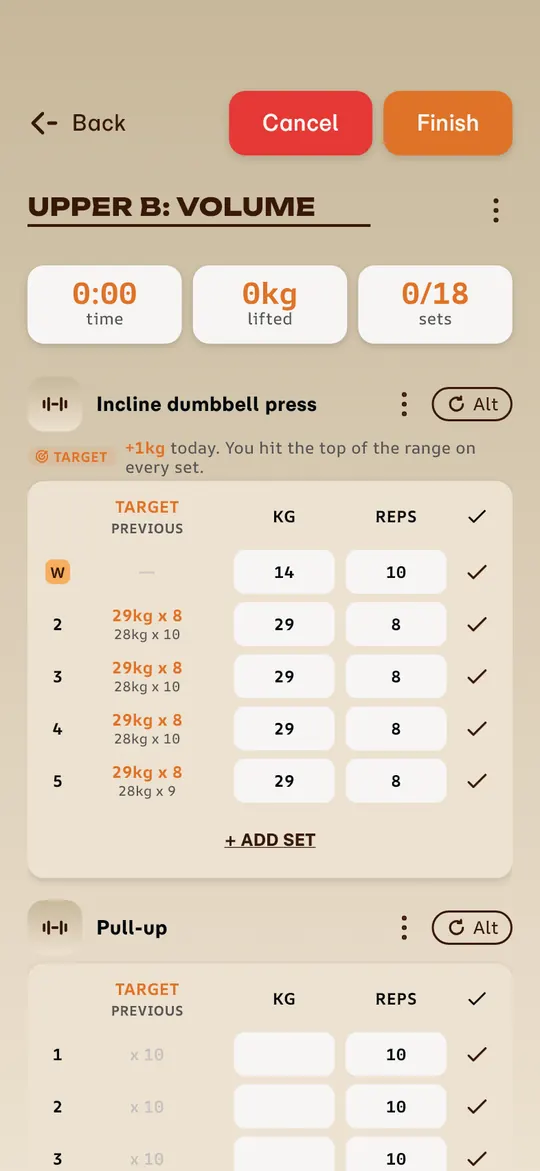
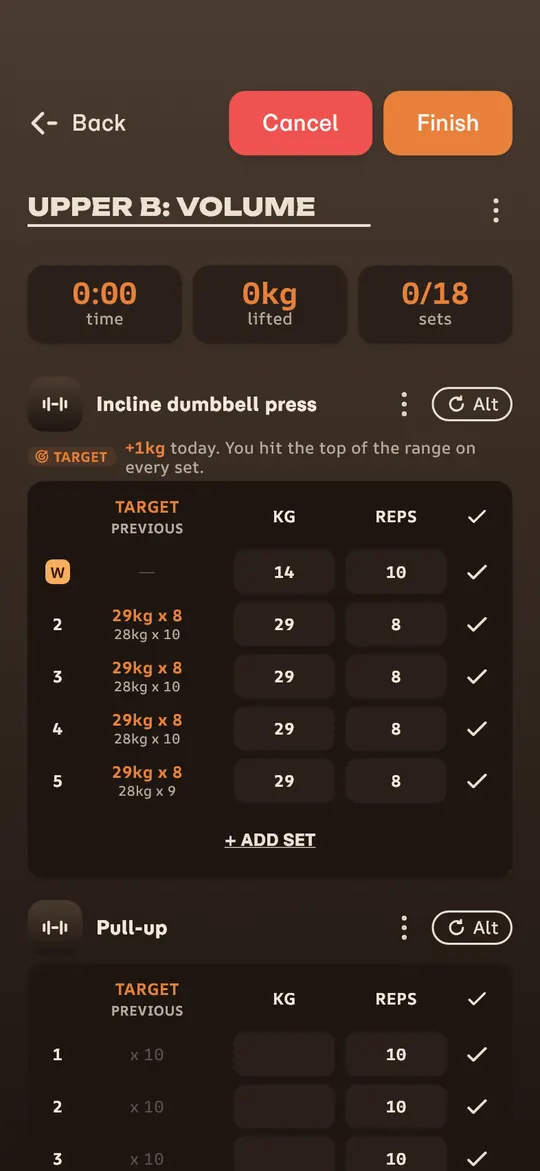
At the top
- Back. Leaves the screen; the workout keeps running.
- Cancel ends the workout without saving, after asking.
- Finish saves the ticked sets and opens the summary.
- The workout's name and its ⋮ (Add workout note).
- Three tiles. Time since you started, weight lifted so far, and sets ticked of all.
Each exercise
- Its picture and name (tap for how to do it), and your note for it, if you wrote one.
- The coach's line PRO. Today's target and why. On a free account, the first exercise shows a teaser.
- ⋮. Normal, Superset, Dropset, Add warm-up sets, Add note for this workout, Remove. For this workout only.
- Alt swaps it for a similar exercise, for this workout.
- The sets table.
- #. Tap to mark the set W (warm-up) or F (to failure).
- PREVIOUS. What you did in this set last time. With Pro, the coach's TARGET above it in orange.
- KG and REPS (or TIME, DIST). Tap to type with Gymaroo's keypad. A barbell's KG keypad has the plate calculator.
- ✓. Tap when the set's done. The row turns green and the rest timer starts.
- ADD SET; swipe a set left to remove it.
ADD EXERCISE at the bottom adds an exercise from the library.
While you rest
The rest timer is a pill at the bottom, with the time left, -15, +15 and ✕. When a set beats a record, its row flashes with a trophy.
See Log a workout for how it all fits together.