


How to get there. Tap a split's card in Splits, a split in Gymaroo's splits, or a link a friend sent you.
What's on it
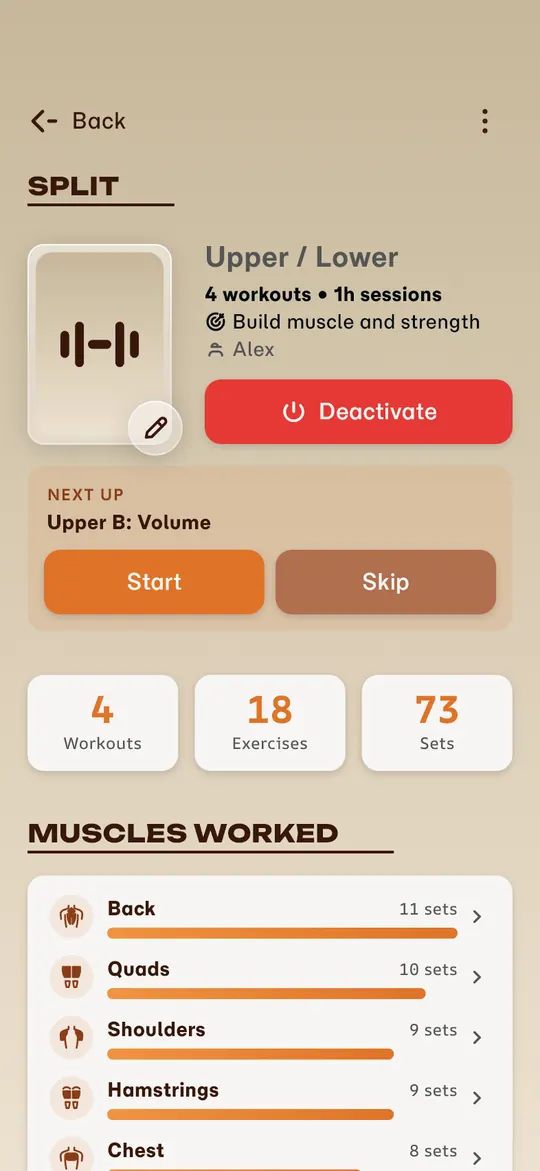
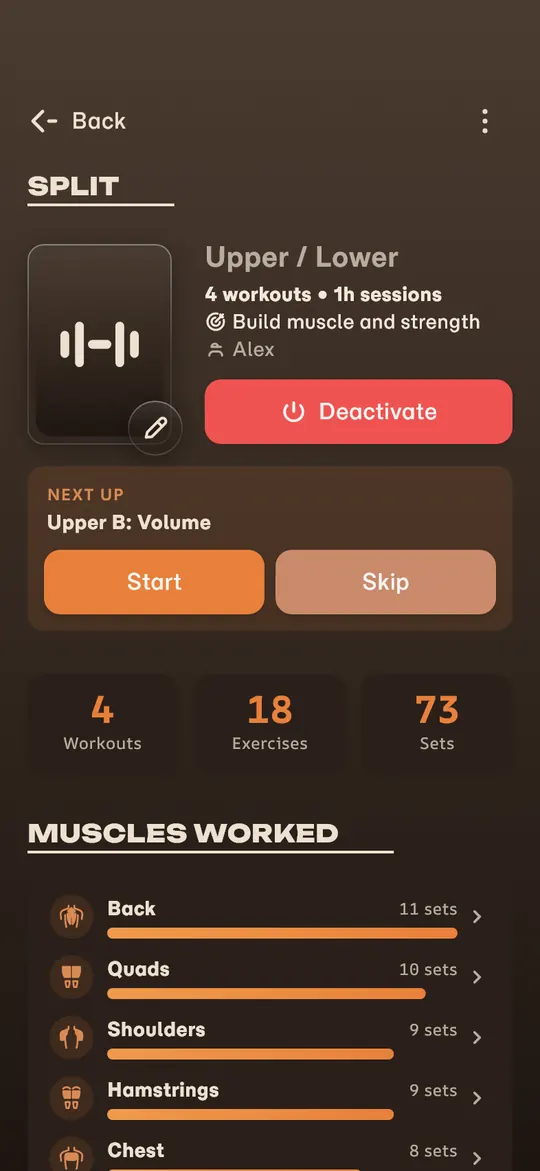
- The split's card. Its cover, name, workouts and session length, goal and author, and Activate (or, if it's your active split, the NEXT UP panel with Start and Skip, and Deactivate).
- Three numbers. Workouts, exercises and sets in one round of the split (warm-ups left out).
- MUSCLES WORKED. Each muscle group and its sets in one round, the most first. Tap one to open it in the Muscle Explorer.
- WORKOUTS. A timeline of the split's workouts, in order. Tap one to open or close it. Open, each exercise shows its sets ("1 warm-up · 3 × 8-12reps 60kg"); tap an exercise to see it. "6rm" means the most weight you can lift for 6 reps.
The ⋮ menu
On your own split, it has these.
- Edit opens the split editor.
- Ask Gymaroo to change it PRO to describe a change, see Gymaroo's version first.
- Share for a link to send to anyone.
- For a split built by Ask Gymaroo, plan it in 6-week blocks, or stop.
- Delete, after asking.
On someone else's split or one of Gymaroo's, Add to My Splits saves your own copy. The toast's Open takes you to it.