A split is a training plan, a few workouts done in turn (say Upper, Lower, Upper, Lower). Your active split is the one you're following now. Gymaroo remembers where you are in it, so Start always opens the right workout.
Find a split
You have three ways to get one.
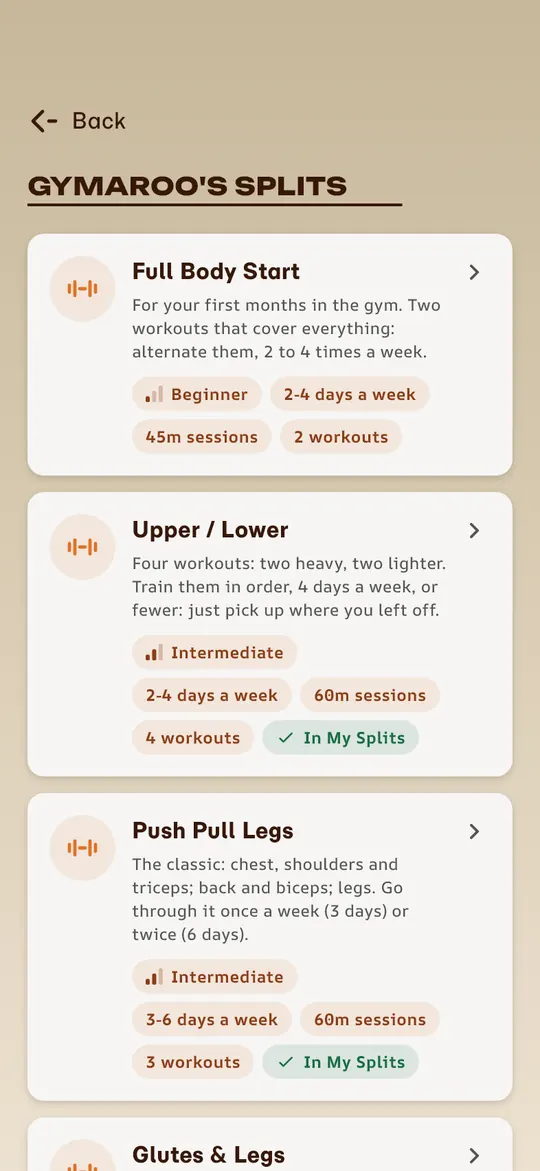
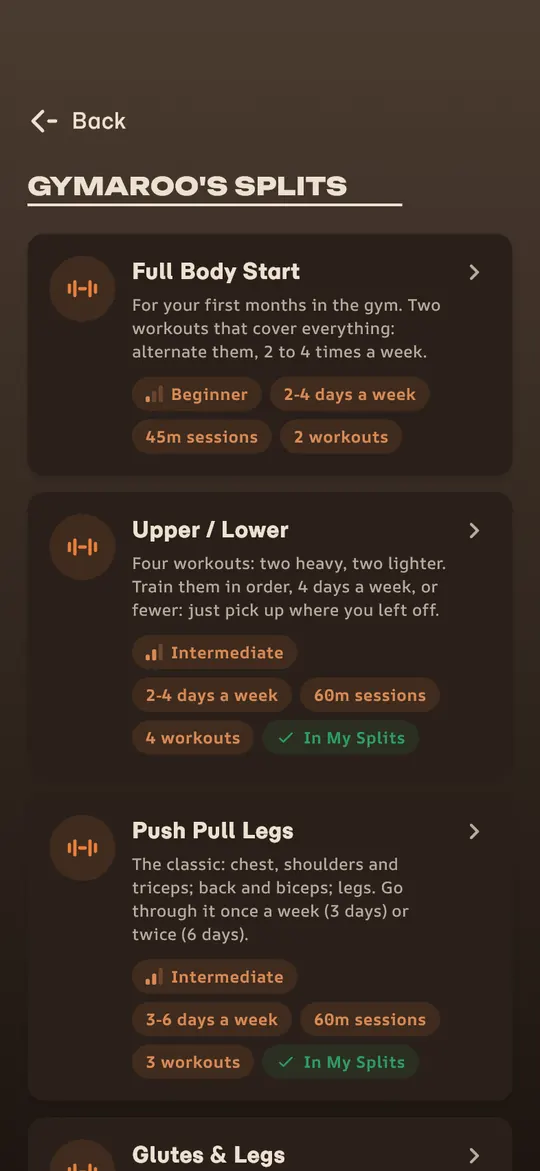
- Gymaroo's splits. Splits › Gymaroo's splits. Six plans we wrote to cover most people, like Full Body Start, Upper / Lower, Push Pull Legs, Glutes & Legs, Dumbbells Only and Home Bodyweight. Each card says who it's for, its level, how many days a week it suits and how long the workouts are.
- From a friend. Open the link they sent you. The app opens on their split, where you can save it.
- Your own. Build one (Build a split) or have Gymaroo build one for you (Ask Gymaroo) PRO.
Make it your active split
On the split's page or its card, tap Activate. If the split isn't yours yet (one of Gymaroo's, or a friend's), Gymaroo saves a copy to your splits first and activates the copy. Your copy is yours. Edit it as you like, the original never changes it.
You can also save a split without activating it, from the split page's ⋮ › Add to My Splits.
Train it
Home shows the active split under ACTIVE SPLIT, with the next workout and two buttons.
- Start opens the next workout.
- Skip moves on to the workout after it, without logging anything. Gymaroo asks first. A skip isn't a workout, so it doesn't count for your streak, stats or records.
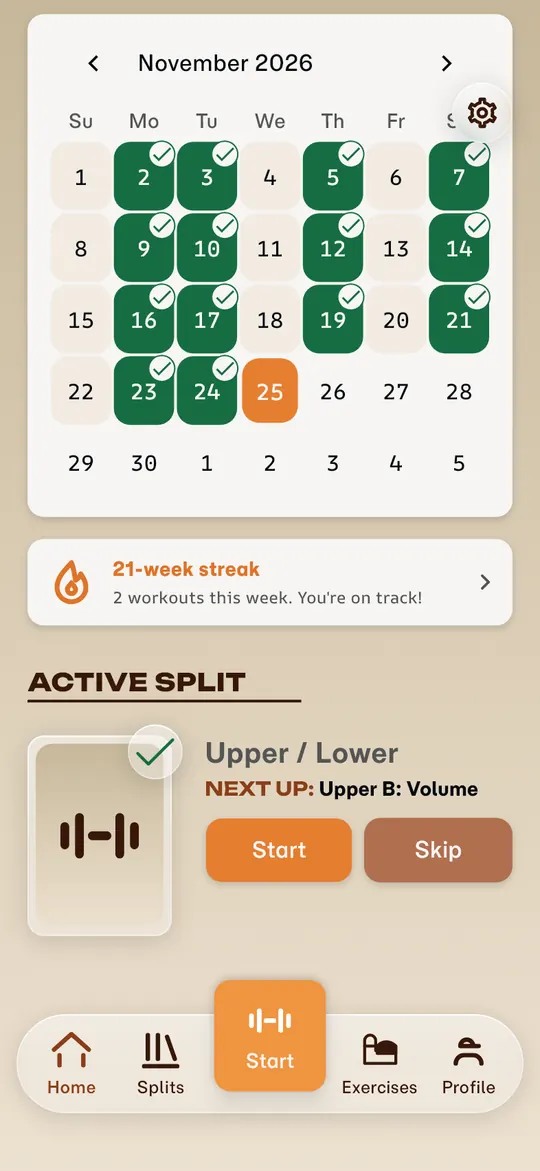
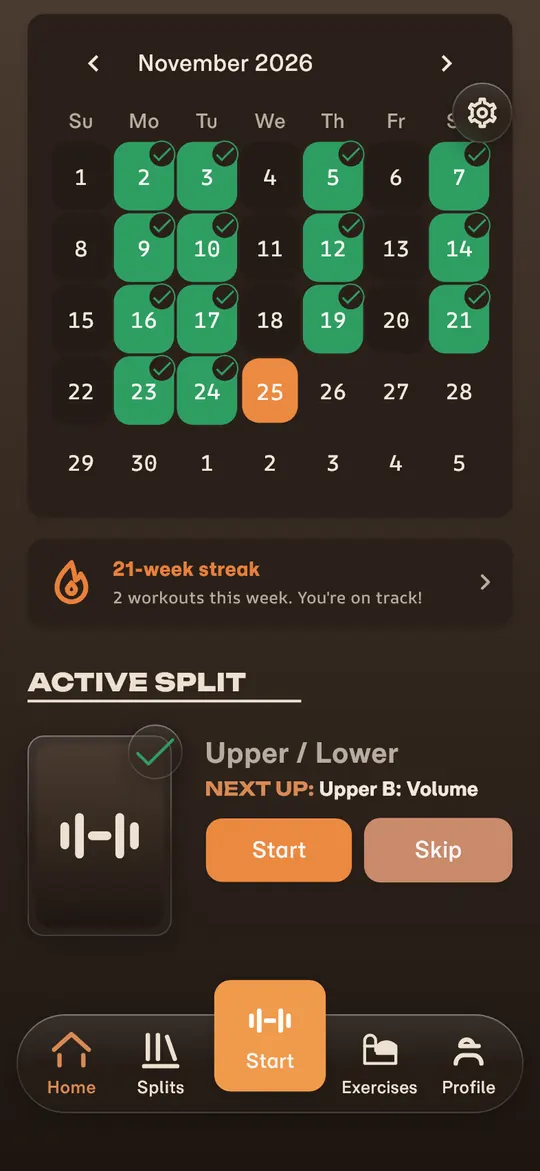
The same panel, NEXT UP, is on the split's card in Splits and on its page. When you finish a workout from the split, the next one comes up.
Switch splits or take a break
- Activate another split, and it becomes the active one. Activating the old one later picks up where you left off.
- Tap Deactivate (the red button on the active split's card) to follow no split for a while. Start then opens an empty workout.
Share a split
On the split's page, tap ⋮ › Share. You get a link (gymaroo.app/s/…) to send however you like. Whoever opens it sees your split, in the app if they have it, where they can save their own copy, or on the website if they don't. Cover photos stay on your phone and aren't shared.