


The quickest way to a good first workout is to follow one of Gymaroo's splits. Here's the whole thing, start to finish.
1. Pick a split
- Tap Splits in the tab bar at the bottom.
- Tap the Gymaroo's splits tile.
- Pick one. New to the gym? Full Body Start is made for your first months, with two workouts that cover everything, 2 to 4 times a week. Training at home? Home Bodyweight needs no equipment.
- On the split's page, tap Activate.
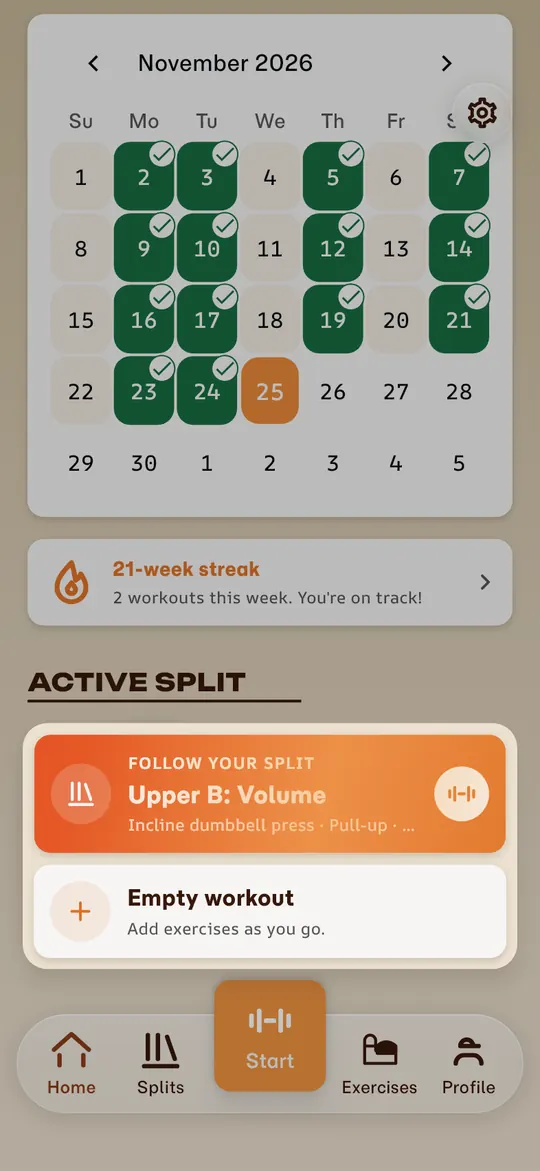
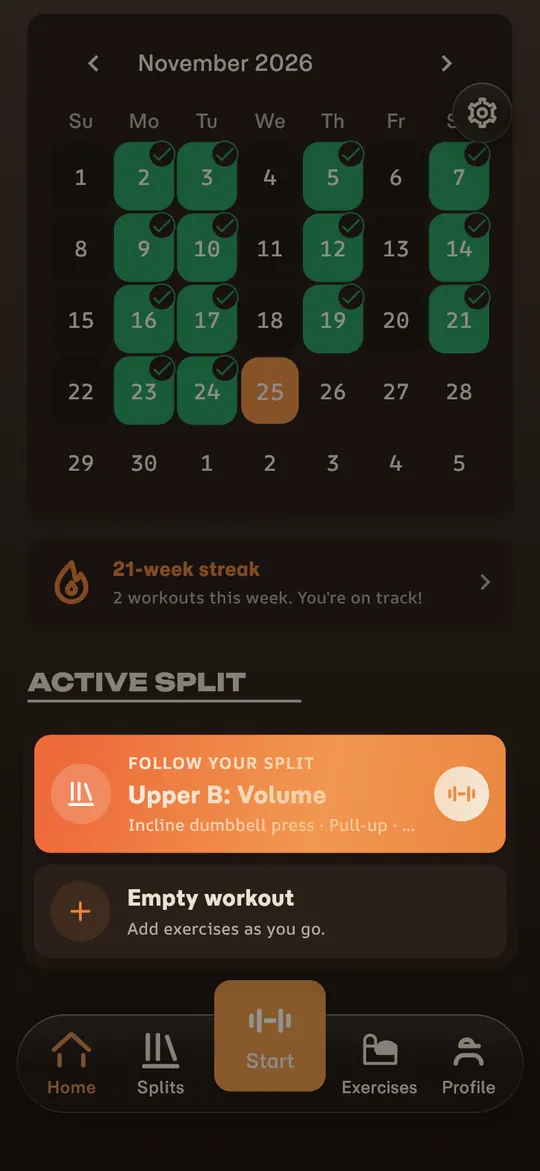
Gymaroo adds a copy of the split to your splits and makes it your active split. Back on Home, it shows which workout is next.
2. Start the workout
Tap Start on the active split's card on Home (or the big Start button in the middle of the tab bar, then Follow your split).
3. Do your sets
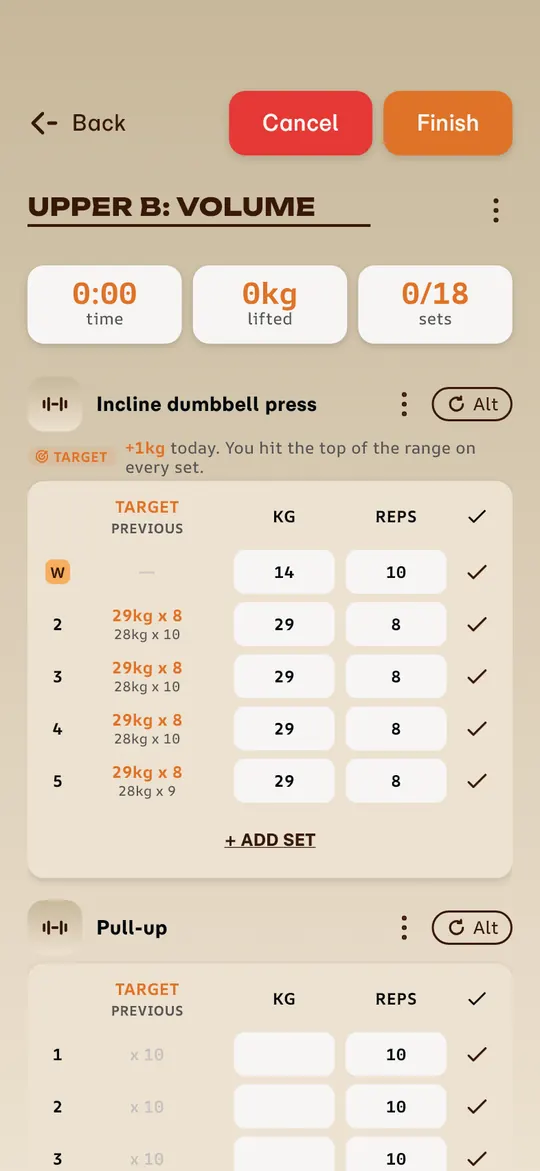
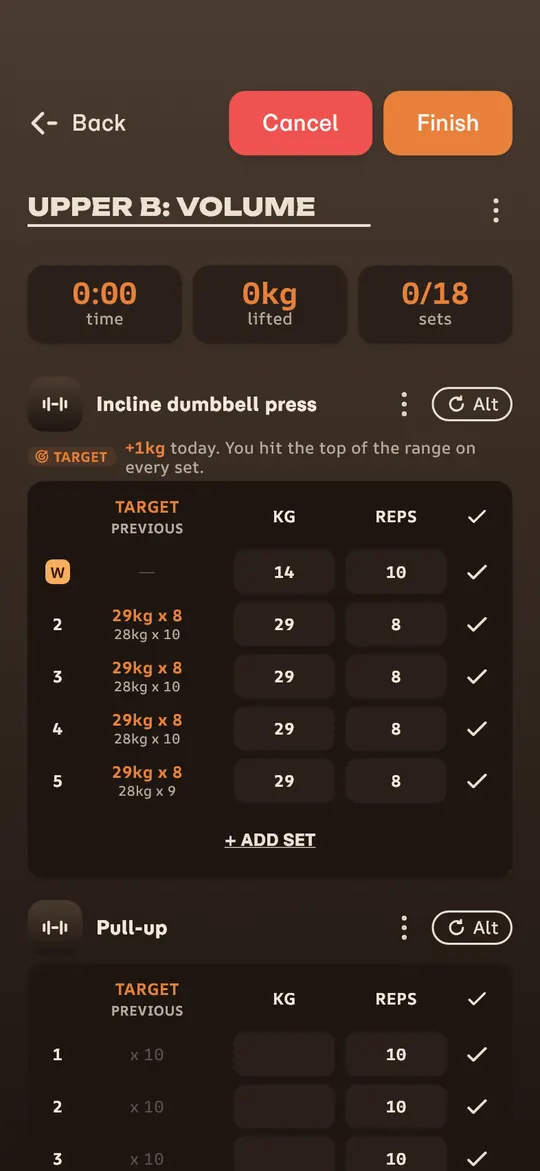
The workout opens with every exercise and its sets.
- For each set, check the KG and REPS cells. They're already filled in, from your plan the first time, from last time after that. Tap a cell to change it; Gymaroo's keypad opens.
- When you've done the set, tap the ✓ at the end of its row. It turns green, and the rest timer starts at the bottom of the screen.
- Not sure about an exercise? Tap its name to see how it's done.
- Machine taken? Tap Alt beside the exercise for one that works the same muscles.
4. Finish
When you're done, tap Finish at the top. Only the sets you ticked are saved. The summary shows the weight you lifted (as a creature), your time, your sets and any records.
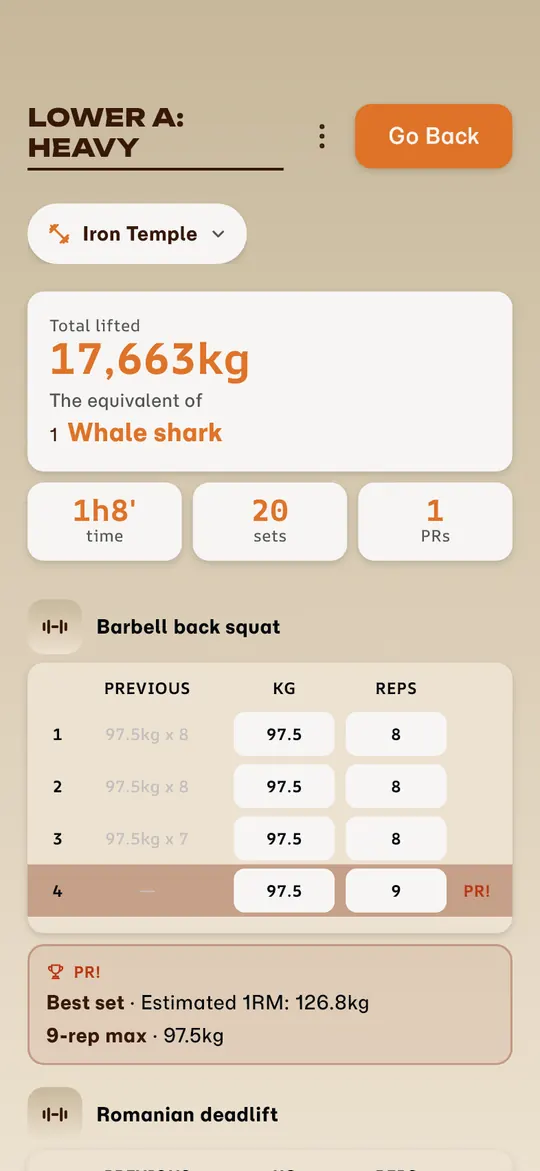
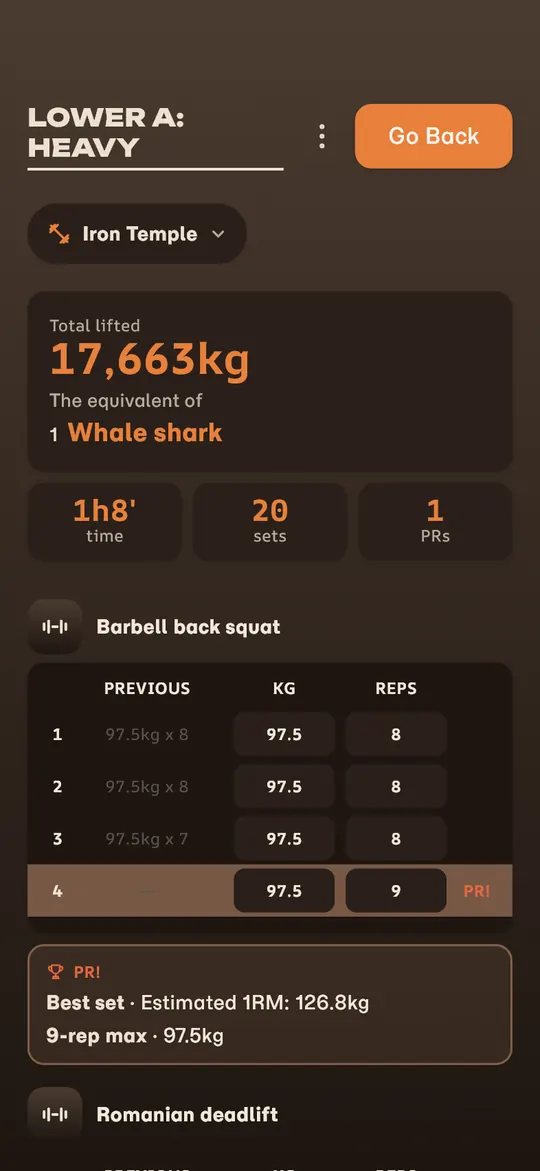
That's it. Next time you tap Start, the split's next workout comes up, with today's numbers ready to beat.
What next
- Follow a split, for skipping a workout and changing splits.
- Log a workout, for everything you can do during a workout.
- Progressive overload, for how to use last time's numbers to keep getting stronger.