


Start a workout
There are a few ways in.
- From your active split. Start on Home's active split card, or the tab bar's Start › Follow your split.
- Empty. The tab bar's Start › Empty workout (with no active split, Start opens one straight away). Add exercises as you go. It's named after the day, like "Monday's Workout".
- A saved workout. Splits › Workouts, then Start on its card.
- Today on the calendar. Tap today's date on Home.
Only one workout runs at a time, so any of these opens the workout in progress if there is one.
Log your sets
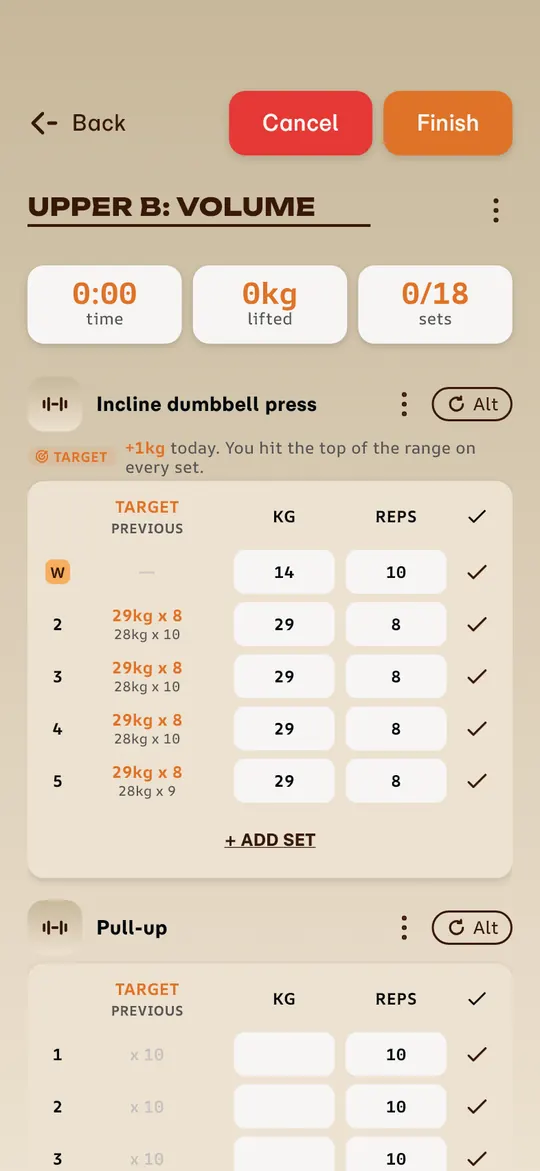
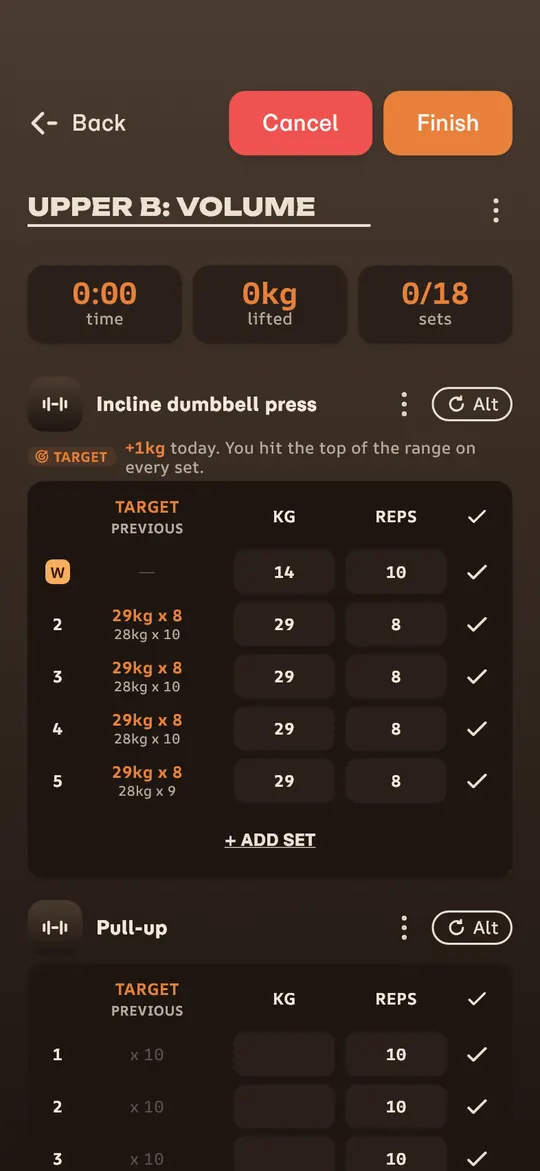
Each exercise is a card with a table of sets, with #, PREVIOUS, KG and REPS (or TIME for holds and cardio, DIST for runs and rows), and a ✓.
- Check the KG and REPS cells. They're filled in from last time's sets (or the plan's, the first time). Tap a cell to change it with Gymaroo's keypad; its arrow key moves to the next cell.
- Do the set, then tap ✓. The row turns green and the rest timer starts.
- Repeat. The page scrolls to your next set by itself.
At the top, three tiles count up. The time since you started, the weight you've lifted in the ticked sets, and the sets ticked of all.
Warm-ups and sets to failure
Tap a set's number to mark it, once for W (a warm-up), twice for F (taken to failure), three times to go back. Warm-ups count toward the weight you lifted, but not for records, the coach or sets per muscle.
To add warm-ups worked out from your working weight, open the exercise's ⋮ › Add warm-up sets. See At the gym.
Change things on the fly
Changes here are for this workout only. Your split or saved workout stays as it was.
- Swap an exercise. Tap Alt for exercises that work the same muscles.
- Add an exercise. ADD EXERCISE at the bottom.
- Add a set. ADD SET under the sets (up to 8 per exercise). To remove a set, swipe it left.
- Supersets and drop sets. The exercise's ⋮ › Superset, then tap the exercises to join it; or Dropset.
- Notes. The exercise's ⋮ › Add note for this workout, or the ⋮ by the workout's name › Add workout note.
- Reorder. Long-press an exercise's name and drag it.
The rest timer
Ticking a set starts the rest timer, as a pill at the bottom. -15 and +15 shorten or lengthen it, ✕ ends it. A sound and a vibration tell you when it's over. Set your usual rest in Settings › Workouts, and a different rest for any exercise on its page (Track your progress).
Leaving and coming back
Back leaves the page, not the workout. It keeps running. Home shows a live card with the time, the next set and Continue. On Android a notification shows the workout (you can tick the next set from it); on iPhone, a Live Activity on the Lock Screen and the Dynamic Island.
Closing the app loses nothing. The workout is kept on your phone as you go, and comes back as it was when you reopen the app (for up to 24 hours).
Finish or cancel
- Finish saves the sets you ticked (Gymaroo tells you how many of all) and opens the summary.
- Cancel ends the workout without saving anything, after asking.
No signal?
A workout runs on your phone, so keep logging. If you finish without signal, the workout is kept and sent as soon as you're back online. Home shows it as waiting, with Send now.